
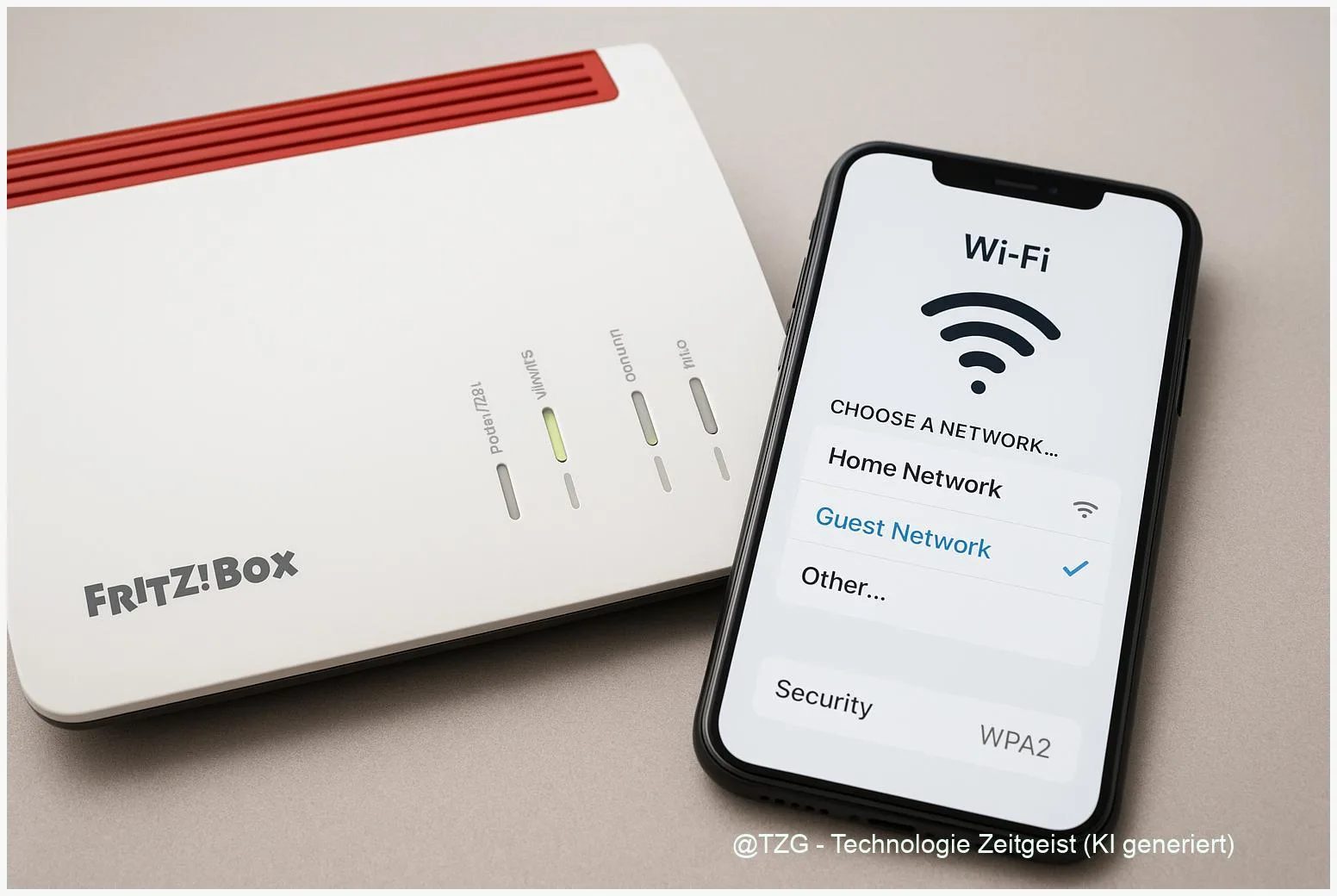
Want to share Wi‑Fi without sharing your whole home network? This guide shows how to set up FRITZ!Box guest Wi‑Fi step-by-step and lock it down sensibly. With a separate guest network, visitors get internet access while your PCs, smart home devices, and NAS stay protected. You will configure the SSID, choose WPA2/WPA3 security where available, set a strong password, and learn what to check if guests cannot connect.
Introduction
Your Wi‑Fi password tends to spread quickly: a friend visits, a neighbor needs a quick download, family comes over for the holidays. After a few months, you often cannot tell who still has access. That is not only annoying when the connection feels slow, it is also a security risk: anyone on your main Wi‑Fi may be able to see certain devices on the local network, like printers, media servers, or smart home hubs.
A FRITZ!Box can solve this with a dedicated guest access. It is designed to separate visitors from your home network, while still giving them a stable internet connection. The steps below are written for current FRITZ!OS versions; wording in menus can differ slightly by model, but the structure is the same. After setting it up once, you can switch guest Wi‑Fi on and off in seconds.
Basics and Overview: FRITZ!Box guest Wi‑Fi set up
A FRITZ!Box “Guest Access” (guest Wi‑Fi) is a separate wireless network that your router provides in addition to your normal Wi‑Fi. The key idea is separation: guests should be able to reach the internet, but not your internal devices. In AVM’s documentation, the guest access is described as being isolated from the home network, which is why it is a common best practice for visitors.
Treat guest Wi‑Fi like the Wi‑Fi in a café: useful for internet access, but not a place where your private devices should be reachable.
Security-wise, you will mainly decide between WPA2 and WPA3. WPA2 is widely compatible; WPA3 is the newer standard and can be more secure, but older phones and laptops may not support it. Many FRITZ!Box models offer WPA2/WPA3 options depending on FRITZ!OS and hardware.
| Option or Variant | Description | Suitable for |
|---|---|---|
| Guest Wi‑Fi with password | Guests join a separate SSID and enter a dedicated password you control. | Most households, regular visitors, best balance of security and convenience. |
| Guest Wi‑Fi with WPA3 (if available) | Uses the newer Wi‑Fi security standard; may reduce compatibility with older devices. | Homes with modern phones/laptops and a focus on stronger encryption. |
Preparation and Prerequisites
Before changing Wi‑Fi settings, take two minutes to avoid the most common pitfalls: losing access to the router interface, using an outdated FRITZ!OS version, or accidentally changing the main Wi‑Fi instead of the guest network.
Checklist (quick and practical):
- Be connected safely: Do the setup from a device already connected to your main Wi‑Fi or via LAN cable if possible.
- Know the router address: Open the FRITZ!Box interface via fritz.box in your browser (or the router’s IP address if your network requires it).
- Have admin access: You need the FRITZ!Box password (the one used to open the router interface). If you use FRITZ!Box users, make sure your user has permission to change Wi‑Fi settings.
- Update FRITZ!OS (recommended): In the FRITZ!Box interface, check System > Update. Updates can add security fixes and may enable WPA3 on supported models.
- Decide the guest Wi‑Fi name and rules: Pick an SSID guests will recognize (for example “Smith-Guest”) and decide whether you want to limit access times or bandwidth.
If you want to go one step further later, you can also review general home network hardening. TechZeitGeist has a useful overview on basic home Wi‑Fi security habits (for example, strong passwords and keeping firmware updated).
Step-by-Step Instruction
The menu labels can vary slightly by FRITZ!OS version and model, but you are usually looking for Wi‑Fi (or WLAN) and then Guest Access (or Gastzugang). If you cannot find it, use the search/help function in the interface or check AVM’s model-specific knowledge base article (linked in Sources).
- Open the FRITZ!Box interface: In a browser, go to fritz.box and sign in with your FRITZ!Box password.
- Navigate to Guest Access: Select Wi‑Fi (WLAN) > Guest Access (Gastzugang).
- Enable guest Wi‑Fi: Turn on the option to activate guest access. In many interfaces it is a checkbox like Enable Guest Access.
- Choose the access type: Select a private hotspot / Wi‑Fi guest access with password (wording differs). This is the typical, safest choice for home use.
- Set a clear network name (SSID): Use a name that is easy for visitors to pick from the Wi‑Fi list, but does not reveal personal details (avoid full names + address).
- Set a strong guest password: Use at least 12 characters with a mix of letters and numbers. Treat it as disposable: it is okay to change it after a party.
- Select encryption (WPA2/WPA3): If your FRITZ!Box offers WPA3 for the guest network, enable it when your guests use modern devices. If guests often bring older hardware, WPA2 may be the more compatible choice.
- Confirm separation from the home network: Ensure the setting is configured so guests have internet access only and no access to devices in the home network. On many FRITZ!Box setups this isolation is the default idea of guest access.
- Optional: set limits: If available on your model/FRITZ!OS, enable time limits or bandwidth limits so guest traffic cannot overload video calls or gaming on your main network.
- Apply and test: Save/apply the settings. Then connect with a phone to the guest SSID and confirm you have internet access.
If everything worked, you should see the guest SSID in the Wi‑Fi list and guests should get online without ever seeing your home devices. As a quick sanity check: the guest device should not be able to open local services like a NAS web interface in your home network.
Tips, Troubleshooting, and Variants
Most guest Wi‑Fi problems come down to “the network is on, but the device cannot join” or “it joined, but there is no internet”. The fixes below are safe to try and do not require deep networking knowledge.
Common issues and fixes:
- Guest SSID is not visible: Re-check that guest access is enabled and saved. If your FRITZ!Box has separate settings for 2.4 GHz and 5 GHz, make sure the guest Wi‑Fi is actually being broadcast on at least one band. Restarting the Wi‑Fi (disable/enable) can help.
- Guests cannot connect (password keeps failing): Re-enter the password carefully, watch for 0/O and 1/I. If you changed settings recently, tell guests to “Forget Network” on their device and reconnect.
- Connected but no internet: In the guest access settings, confirm that internet access is allowed for guests. Also check whether you set a schedule/time limit that is currently blocking access.
- Some devices connect, others do not: This is often a WPA3 compatibility issue. If a guest device is older, switch the guest network to WPA2 (or a mixed mode if your FRITZ!Box offers it) and test again.
Practical security tips that make a difference: Change the guest password after larger gatherings, and turn guest access off when you do not need it. If you have a smart home, keep IoT devices on your main network only if you understand the implications; in many homes it can be cleaner to separate “trusted devices” and “visitor devices” by using guest access only for visitors.
Variant for convenience: If your FRITZ!Box shows a QR code for Wi‑Fi access, use it. Guests can scan it with their phone camera and join without typing. TechZeitGeist also covers everyday tips to reduce password friction safely (for example, QR codes and password managers) if you want to improve usability without weakening security.
Conclusion
With guest access on a FRITZ!Box, you can give visitors Wi‑Fi without handing them the keys to your home network. The most important steps are straightforward: enable guest access, set a clear SSID, use a strong separate password, and make sure guests are limited to internet access only. If your hardware and guest devices support it, WPA3 can add an extra layer of protection, but WPA2 remains the safer choice for maximum compatibility. Once configured, guest Wi‑Fi becomes a small habit that reduces risk and keeps your everyday network calmer.
Have you set up guest Wi‑Fi differently (for example with time limits or a stricter password policy)? Share your setup and what worked best for your household.




Leave a Reply